
How to enroll in a course or program
- If you see a program or course of your interest, click the course title or “View Course” button to enter into the course.
- On the course page, you can learn more about the course including the detail description about the course, requirements, learning objectives, and the instructor.
- Check the course status
- Enrollment – whether you have already enrolled or not
- Price – whether it is a free or paid or private course
- Click “Get Started” to enroll into any free courses or programs.
- Click on the first lesson to start learning.
Learning interface
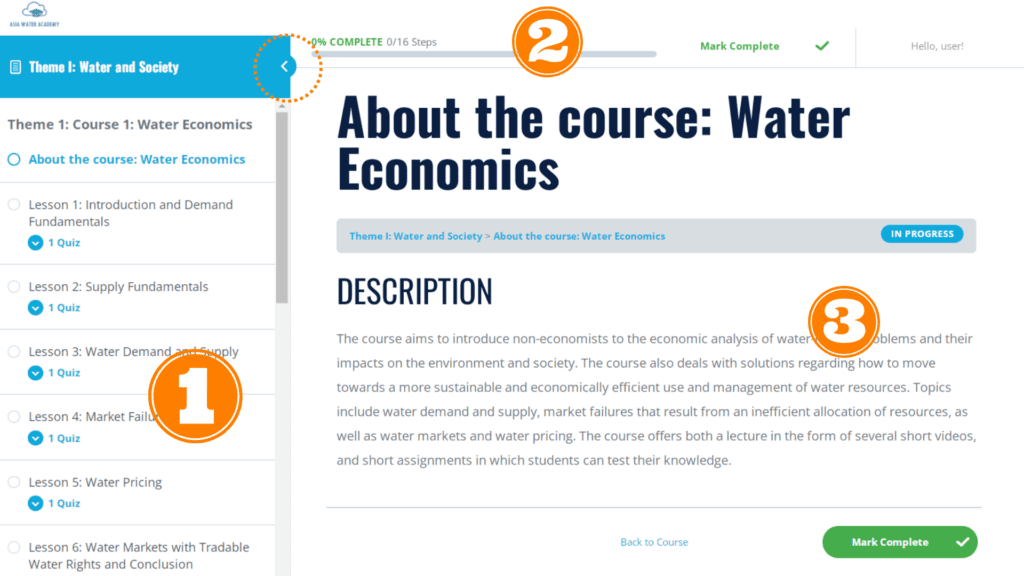
In the learning interface, you can see:
- Course sidebar – where you can check the completed lessons and upcoming lessons in detail. (You can hide the sidebar by clicking the arrow at the top- shown in the dotted circle in the image below)
- Course progress bar
- Course content
Please be noted to click “Mark Complete” after learning every lesson.
Video settings
In the video setting, you can change the following settings as you prefer
- Subtitle/ caption
- Video quality
- Video speed
- Picture-in-picture view
- Enlarge the video
Taking quiz
- After watching the lecture video and learning lesson, you have to answer quiz in “Quiz” session.
- The quizzes include multiple choices, sorting choices, open essays, etc.
- Take the quiz and click “Finish Quiz” button.
- After answering the quiz, the result will be displayed in points and percentages (%).
- If your score is lower than the preset passing score of the course, you will not be able to continue to the next lesson and will need to take the quiz again.
- Click “View Questions” button if you want to see which questions you are correct or incorrect.
- If your score is higher than or equal to preset passing score of the course, you will see the “Click here to continue” button and you can continue to next lesson.
How to check your course progress
Option 1
- If you enter the course you have enrolled, you will see a bar showing your completion progress of that course.
- The completed lessons are shown as green ticks beside each lesson title.
Option 2
- Navigate to “My account” page
- Click “your courses” tab
- Under the tab, you can find:
- Detail progress of all the courses you have enrolled
- Quiz statistics or marks you have got for the taken quizzes, and
- Check your answers for the open questions
How to check the program progress
- Navigate to the “Courses” menu.
- Choose the program you have enrolled in from the program list.
- In the program page, you can check the progress of each course within the program by clicking the “Expand All” button.